Here's the short answer: most hybrid workers should not buy a portable monitor. If you work from cafés and trains, it's dead weight you'll stop carrying within a month. If you travel for work and spend nights in hotel rooms doing real work, it's genuinely useful. If you're a commuter who splits time between two fixed desks—office and home—the right answer is a second full-size monitor at each location, not a portable one in your bag.
Now let me explain why I've watched more people regret this purchase than almost any other.
The Promise vs. The Reality
Portable monitors are marketed perfectly. A 15.6-inch 1080p screen that weighs under two pounds, plugs in with one USB-C cable, and gives you a second display anywhere you go. It sounds like the missing piece of the hybrid work setup.
Then you buy one, and here's what actually happens:
Week one: You're excited. You set it up at a café, take a photo, post it. It looks great.
Week two: You realize the screen is too dim to use near a window. You angle it away from the light. Now your neck hurts from turning to see it.
Week three: You realize the whole setup takes four minutes to assemble and three minutes to pack. That's seven minutes of your 90-minute café session spent on setup and teardown.
Week four: You leave it at home. It sits in a drawer. You feel guilty every time you see it.
I've watched this happen to enough people that I now actively talk most hybrid workers out of buying one. Not because portable monitors are bad products. Because they solve a problem most hybrid workers don't actually have.
The One Case Where They Genuinely Work
Here's who should buy a portable monitor:
You travel for work and spend multiple nights in hotels doing real work.
That's it. That's the case.
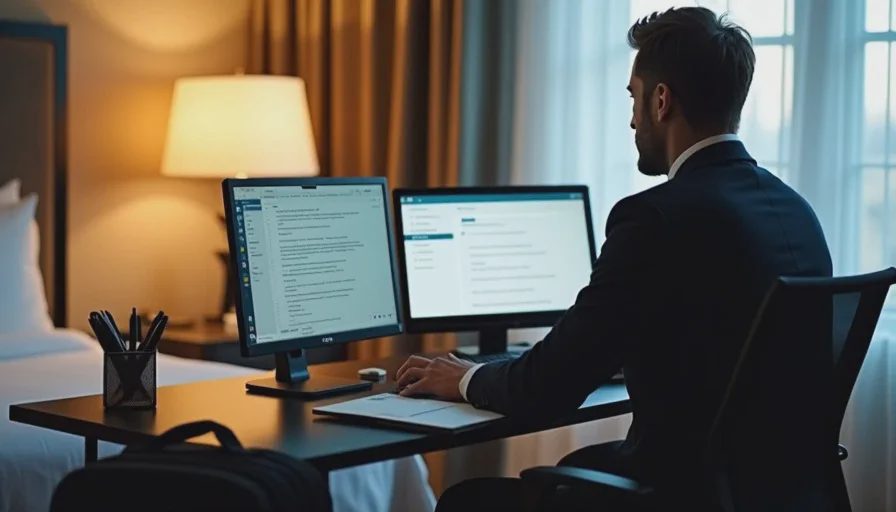
If you fly to a client site and spend three evenings in a hotel room finishing a document that needs two screens, a portable monitor is worth every dollar. You're not setting it up in a café. You're setting it up once on a hotel desk and leaving it there until you check out.
The other case—working from cafés and coworking spaces—is where it falls apart. And that's the case most hybrid workers are in.
The Dimness Problem
This is the thing every portable monitor review glosses over, and it's the reason you'll stop using yours.
Portable monitors typically run 200 to 300 nits of brightness. That sounds like a number. Here's what it means in practice: in a café with windows, your screen will look washed out. In direct sunlight, it will be unreadable.
For context: a Dell UltraSharp U2723QE desktop monitor is 400 nits. An Apple Studio Display is 600 nits. A MacBook Pro 14" screen is 1,000 nits sustained, 1,600 peak.
That brightness gap is the entire experience. On a bright day in a café, you'll be squinting at a portable monitor and seeing your own reflection. You'll turn up the brightness. The battery drains faster. Now you have two problems.
There are exceptions. The Espresso 15 Pro hits 550 nits and remains visible by a sunlit window, though the glossy glass can show reflections. The Espresso Lite 15 is rated at 400 nits, which is comfortable indoors but direct sun will still wash out dark content. Most portable monitors under $200 are 250 nits, which is barely usable in a café.
The Setup Tax
Let me walk you through what a café session with a portable monitor actually looks like.
You arrive. You find a table big enough for a laptop and a second screen. That's already a larger table than you'd otherwise need. You sit down. You take out the monitor. You take out the stand or the kickstand case. You find a way to angle it so it doesn't fall over. You plug in the USB-C cable. You realize you need to charge your laptop too, so you find the charger and the second cable. You plug into the wall. You angle the monitor away from the window because it's too dim. You realize the table is now completely covered and there's no room for your coffee.
Then someone sits at the table next to you, and their chair is where your monitor's kickstand is.
Now multiply this by every café session. That's the setup tax. It's four minutes at the start and three minutes at the end, and it turns a light, flexible workflow into a small production.
Compare that to your laptop screen plus your phone as a second display, or just using the laptop screen alone. You sit down, you open the laptop, you start working. That's the entire setup.
The one counter-argument: if you work in the same café every day and you have a spot you always sit, the setup tax drops because you're not hunting for a table. But that's not most people's experience.
The Table Problem
Here's the part that no review mentions: most café tables are not big enough for two screens.
A standard café table is 24 to 30 inches wide. A 14-inch laptop plus a 15.6-inch portable monitor is about 30 inches wide when placed side by side. You're using the entire table. Your coffee has nowhere to go. Your notebook has nowhere to go. Your phone has nowhere to go.
You can stack them—portable monitor above the laptop screen—but now you're looking up and down, which is worse ergonomically than looking left and right.
And if you're in a busy café and the only open table is a small round two-top, you cannot use the portable monitor at all. You'll pack it away, and it will have been dead weight for the entire trip.
Battery Drain: Real but Manageable
A portable monitor draws power from your laptop. The Espresso 15 Pro draws about 13W at full brightness. In practice, a second screen adds 15 to 20 percent drain to your laptop battery.
Most café sessions last two to three hours. Modern laptops handle this fine. Lower the monitor brightness and the drain drops. You're reading text, not editing photos.
This concern is mostly theoretical. But it's one more thing to think about, and one more reason to bring a charger you wouldn't otherwise need.
What to Buy Instead
If you work from cafés and trains, here's what actually helps, in order of how much it helps:
1. A better laptop screen. If your laptop has a 13-inch 1080p screen, upgrading to a 14-inch 1440p screen will do more for your productivity than adding a second display. The MacBook Pro 14" M3 and the Dell XPS 14 both have excellent screens.
2. A tablet as a second display. If you already own an iPad, you can use it as a second monitor with Sidecar on macOS or Duet Display on Windows. The Lenovo Tab P12 Pro works as a wireless second screen for Windows PCs via Lenovo Smart Connect, with minimal latency for document review and web browsing, though input delay is noticeable for latency-sensitive tasks like gaming or video editing. It's not as good as a wired portable monitor, but it's better than nothing, and it's a device you already carry.
3. A phone as a second display. On Windows, the Phone Link app lets you use your Android phone as a small second screen. On macOS, you can use your iPhone with Continuity. It's a small screen, but for a reference document or a chat window, it works.
4. A larger laptop. If you're constantly feeling cramped, the answer might be a 16-inch laptop instead of a 14-inch plus a portable monitor. The MacBook Pro 16" has a bigger screen than a 14-inch laptop plus a portable monitor, and it's one device instead of two.
5. A portable monitor. Last on the list. Buy it only if you travel for work and do real work in hotel rooms.
If You're Going to Buy One Anyway
I know some of you are going to buy one regardless of what I say. That's fine. Here's what to look for:
Brightness: at least 400 nits. Below 300 nits, it's unusable near a window. The Espresso Lite 15 at 400 nits is the minimum I'd recommend. The Espresso 15 Pro at 550 nits is better.
Weight: under 1.5 pounds. Above that, you'll feel it in your bag. The Espresso 15 Pro is about 800 grams (1.76 pounds). The Lenovo L16 is 1.54 pounds.
USB-C with power delivery passthrough. This means the monitor can pass power through to your laptop, so you only need one cable to the wall. Without passthrough, you need two cables and two outlets. The Lenovo L16 supports 65W passthrough. The Plugable USB-C Portable Monitor supports 100W passthrough with 85W charging and doubles as a hub.
Connection: single USB-C cable. The Espresso 15 Pro uses two USB-C ports for video and power, with pass-through charging on the second port. This is the right design. Avoid monitors that require HDMI plus USB-C for power.
Stand: integrated, not a separate kickstand. A monitor with a built-in stand is easier to set up than one with a fold-out kickstand. The Espresso Stand+ is a magnetic foldable stand that attaches to the back and supports portrait orientation. The Lenovo L16 has a built-in kickstand adjustable from 0 to 90 degrees.
Resolution: 1080p minimum, 1440p better. A 15.6-inch 1080p screen is fine for text. A 1440p screen is noticeably sharper. The Espresso 15 Pro is 4K (3840 × 2160), which is overkill for most work but excellent for text clarity.
No letters yet — be the first guest to write.